A little check for the text you meant to replace.
Reusing an email template is handy. Remembering to replace every placeholder is another small job. Let's start with just one: [Customer] in a quotation subject.
MYLAVL ·
Before we start
Use classic Outlook for Windows and a LAVL edition that includes the subject-template check. The screenshots show PRO. Feature availability differs between FREE and PRO.
Values for this example
| Setting | Value |
|---|---|
| Check | Subject template placeholders |
| Text to detect, one per line | [Customer] |
| Scope | Only matching subjects |
| Subject keyword | Quote |
A closer look at the card
Let’s try it together
Choose the detail to catch
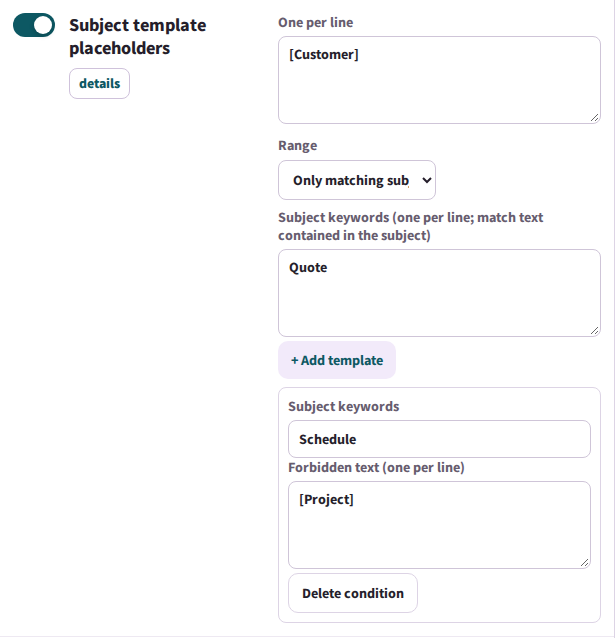
Open the Outlook section and enable Subject template placeholders. Enter [Customer] on its own line. It is the unfinished text you want the check to find.
Keep this first example specific
Choose Only matching subjects and enter Quote as the subject keyword. A subject that does not contain Quote is outside this example's scope.
Generate and apply the code
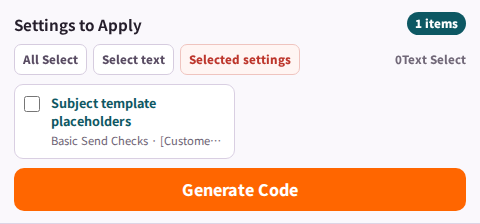
Review the generated VBA and follow the Outlook installation section in the product guide. Preserve any existing VBA and review how the checks fit into the event handler you already use.
Try one unfinished and one completed subject
Use a message addressed to yourself. First test Quote for [Customer], then Quote for Alex. The first should trigger this placeholder check; the second should not. Another enabled check may still show a notice.
What to look for
| Practice case | Expected result |
|---|---|
| Quote for [Customer] | Placeholder remains: this check should warn. |
| Quote for Alex | No placeholder remains: this check should not warn. |
| Schedule for [Customer] | No Quote keyword: outside the scope configured here. |
Another view from the product guide
If it does not work yet
If the check does not run, first confirm that you are using classic Outlook, the feature is enabled, and the subject contains the scope keyword. Follow your organization's macro policy and the product installation guide.
Your next small step
One placeholder and one subject keyword are enough for the first test. Once both outcomes make sense, you can explore another supported check.
Explore the FREE edition
FREE and PRO include different features. Check availability in your edition.
Explore the FREE edition Explore this featureA practical example from the creator of MYLAVL. Product screenshots are reference images; results should be checked in your own application.