Choose one check
Start with one recurring issue, such as a subject that must contain a project name. In the Outlook area, choose the corresponding validation option.
A repeated email routine often has a few details that must be right: a reference in the subject, a required recipient, or a particular phrase. LAVL PRO lets you describe supported checks with conditions and action cards, then generate VBA to apply in Outlook.
Local HTML builder · English and Korean · Check feature compatibility
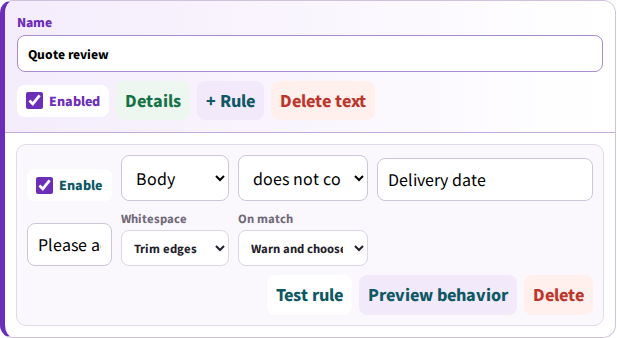
You check the subject by eye before every send.
A rule checks for the text you configured and shows a notice when that condition is not met.
Illustrative setup: use your own required text and test messages. A rule can check the conditions you define; it does not know whether a reference is correct for your business.
Start with one recurring issue, such as a subject that must contain a project name. In the Outlook area, choose the corresponding validation option.
Enter the required text and define when to show a notice or stop a send. Review the applied cards on the result side so that the intended checks are included.
Read the output and follow the Outlook installation instructions in the user guide. If you already have event-handling VBA, review how the new logic fits into it.
Use draft messages and test recipients. Try one message that meets the condition and one that does not, then check the actual result before using it for work.
A short, clearly defined check is easier to understand and maintain. Set up one requirement, test it, and then add another. Separate required subject text from recipient rules so that each condition has a clear purpose.
Generated Outlook VBA is intended for classic Outlook for Windows. New Outlook, Outlook on the web, and mobile Outlook do not run this VBA. Account availability in Outlook and VBA compatibility are different questions; test the behavior in the account and desktop environment you use.
Cards help you configure supported code generation without writing each line yourself. The resulting VBA still needs to be installed, reviewed, and tested. Existing macros, organizational macro settings, and the exact conditions you enter affect how it runs.
For supported tasks, choose cards and enter the required values. LAVL PRO generates the code; the user guide explains where to apply it. You remain responsible for reviewing and testing the result.
No. These Outlook VBA workflows require classic Outlook for Windows. Check your desktop application before purchasing.
Yes. Open the English or Korean FREE edition and review the available features. FREE and PRO have different feature scopes; check the product guide for the current details.
Explore the supported cards in the FREE edition, then check the guide and your application environment before choosing PRO.
Try the FREE edition Purchase detailsReusing an email template is handy. Remembering to replace every placeholder is another small job. Let's start with just one: [Customer] in a quotation subject.
Follow this example →